

How to Fix Windows 11 Search Not Working: 9 Proven Solutions
When the Windows 11 search bar stops working, everything slows down. You press the Windows key, type the name of an app or file, and get a blank menu, endless spinner, or a “search results are slow” message. It is one of the most reported Windows 11 problems, especially after cumulative updates. The good news is that almost every case is fixed by restarting the right service, rebuilding the search index, or running a couple of built-in repair tools. Work through these nine solutions in order.
Why Does Windows 11 Search Stop Working?
Windows 11 search depends on three components: the Windows Search service, the search index, and a background text-input process called ctfmon.exe. If any of these stops, crashes, or becomes corrupted — often after a Windows update — the search bar goes blank or returns no results. Large or corrupted indexes, third-party apps that hijack search, and damaged system files are the other usual suspects.
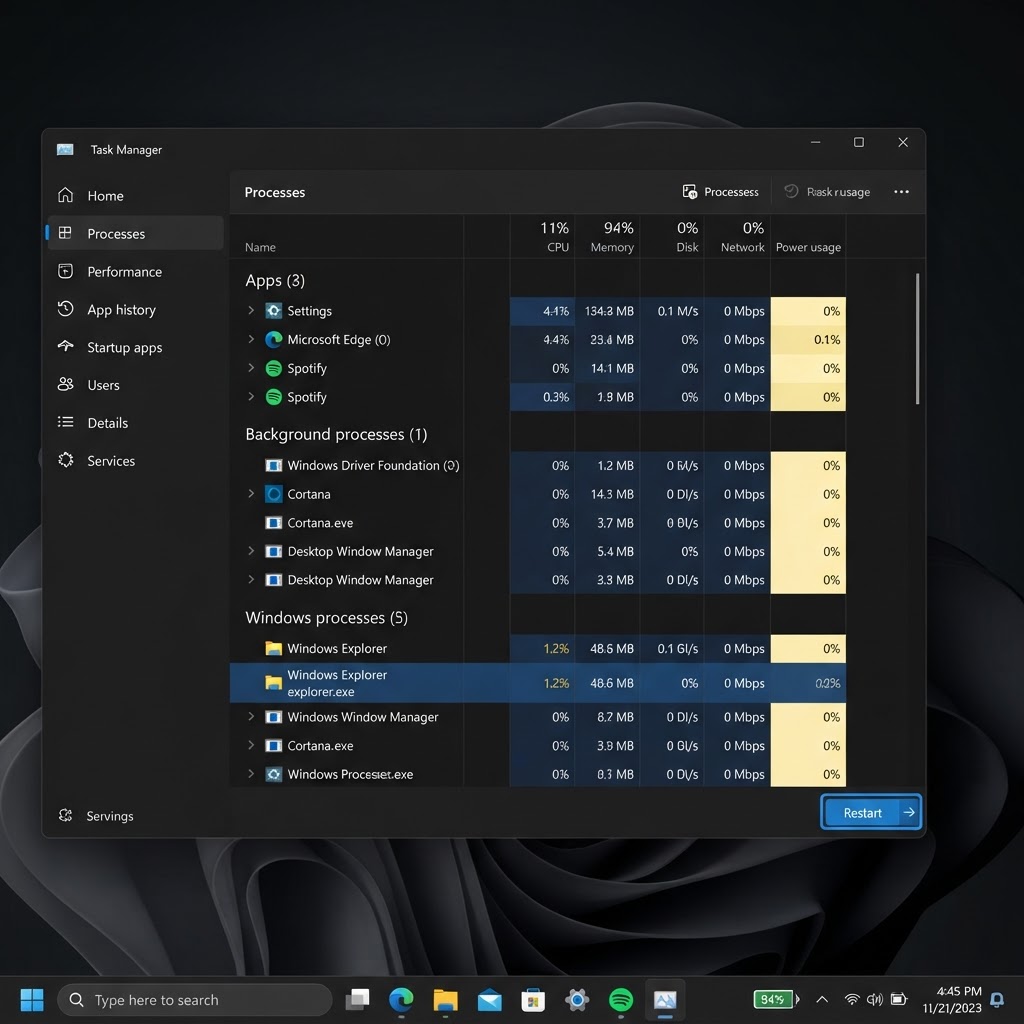
1. Restart Windows Explorer and Search Processes
A temporary process hang is the most common cause, and restarting it takes under a minute.
- Press Ctrl + Shift + Esc to open Task Manager.
- On the Processes tab, find Windows Explorer in the list.
- Right-click it and choose Restart.
- Close Task Manager and press the Windows key to test search again.
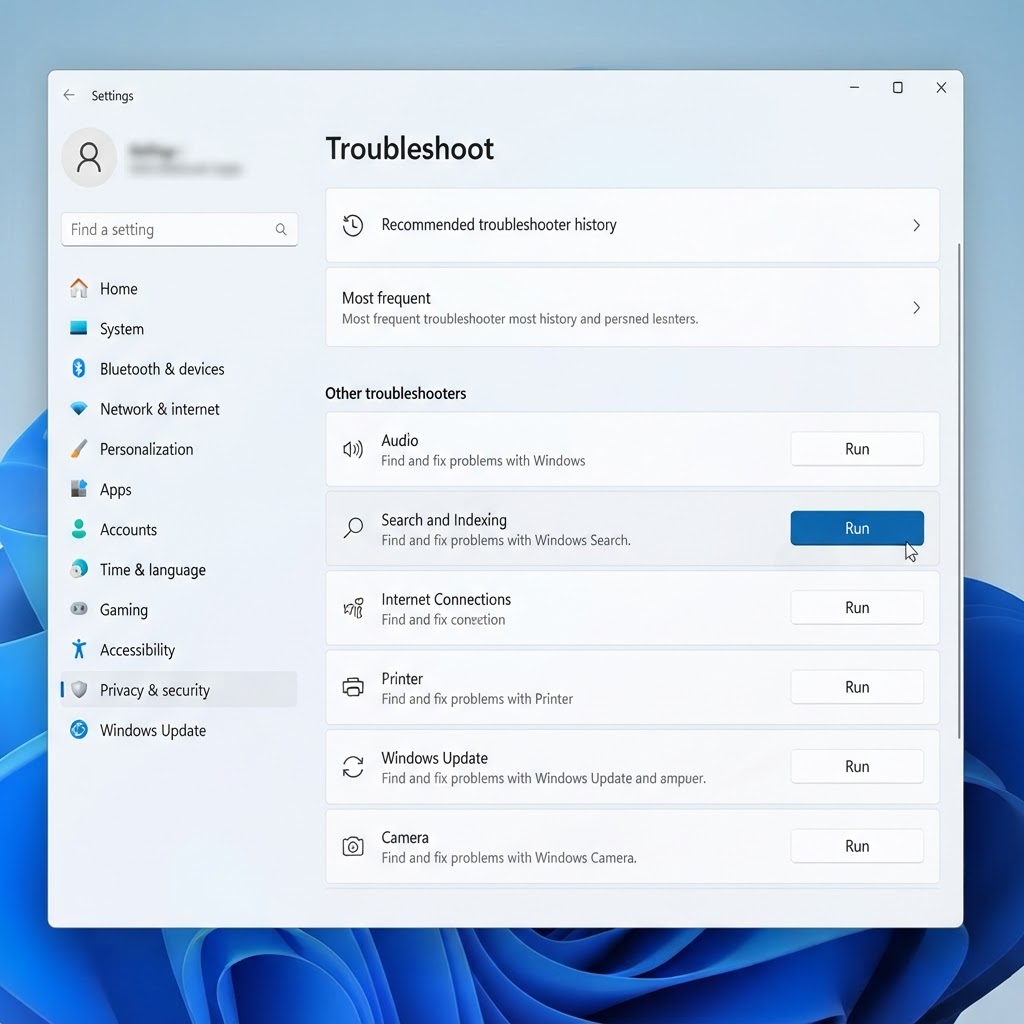
- Open Settings with the Windows + I shortcut.
- Go to System → Troubleshoot → Other troubleshooters.
- Find Search and Indexing and click Run.
- Select the problems you are experiencing and follow the prompts.
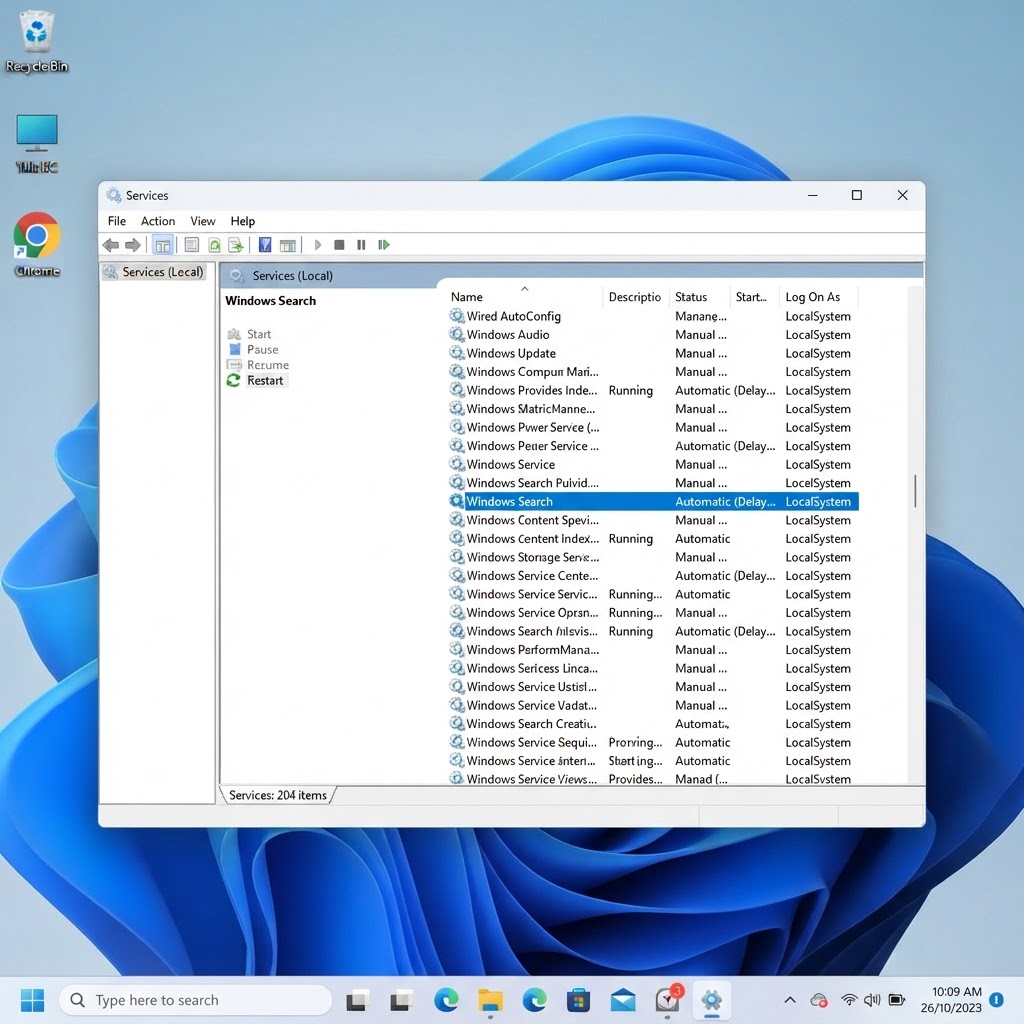
- Press Windows + R, type services.msc, and press Enter.
- Scroll down to Windows Search.
- Right-click it and choose Restart (or Start if it has stopped).
- Double-check the Startup type is set to Automatic (Delayed Start).
- Open Settings → Privacy & security → Searching Windows.
- Make sure indexing is enabled, and note whether it is set to Classic or Enhanced.
- Choose Enhanced to index your entire PC, or use Customize search locations to add specific folders under Classic mode.
- Restart your PC and test search again.
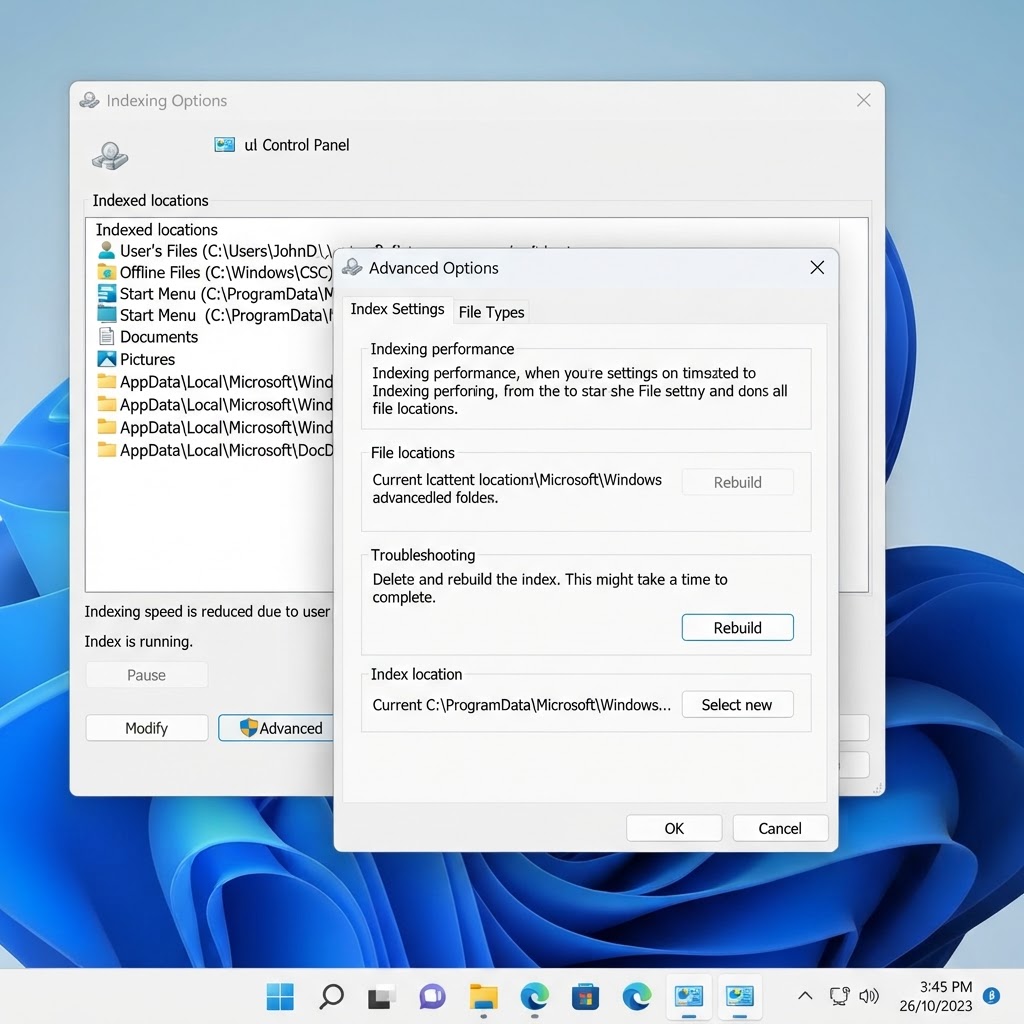
- Press Windows + R, type control, and press Enter to open Control Panel.
- Set View by: Small icons and open Indexing Options.
- Click Advanced, then on the Index Settings tab click Rebuild under Troubleshooting.
- Confirm and wait for the rebuild to complete before testing search.
- Open Task Scheduler → Task Scheduler Library → Microsoft → Windows → TextServicesFramework.
- Right-click the MsCtfMonitor task and choose Enable (or Run).
- Right-click the Start button and choose Terminal (Admin).
- Type sfc /scannow and press Enter. Wait for the scan to finish.
- Then run DISM /Online /Cleanup-Image /RestoreHealth.
- Restart your PC once both scans complete.
2. Run the Search and Indexing Troubleshooter
Windows 11 includes a dedicated troubleshooter that automatically detects and repairs common search problems.
3. Restart the Windows Search Service
If the troubleshooter finds nothing, manually restart the service that powers search.
4. Check Your Search Indexing Settings
Search returns nothing if Windows is not indexing your files at all, or if the folders you need are excluded.
5. Rebuild the Search Index
A corrupted index is the classic cause of search returning no results or crashing when you type. Rebuilding it deletes and recreates the index, which can take an hour or more on large drives but fixes most deep search problems.
6. Re-enable the ctfmon.exe Startup Task
ctfmon.exe handles text input for the search box. If a security tool or an optimization utility disabled it, the search bar appears completely dead. Press Windows + R, type ctfmon.exe, and press Enter. If search starts working, make it permanent so it survives restarts:
7. Repair System Files with SFC and DISM
Damaged system files frequently break search after failed or interrupted updates. These two built-in tools repair them.
8. Install Pending Windows Updates
Microsoft regularly ships fixes for search bugs. Open Settings → Windows Update and click Check for updates. If a recent update is what broke search, check the update history and uninstall the newest quality update under Update history → Uninstall updates — then pause updates until a patched version arrives.
9. Test with a New User Account
If search still fails, your user profile may be corrupted. Go to Settings → Accounts → Other users → Add account, sign into the new account, and test search there. If it works, move your files over and use the new profile, or run the SFC/DISM repairs from the new account to fix the old one.
Frequently Asked Questions
Why is Windows 11 search so slow?
Search is slow while the index is rebuilding or when it indexes an entire large drive in Enhanced mode. Check the “Size on disk” value under Settings → Privacy & security → Searching Windows; a huge index with few results usually means the index needs rebuilding.
Can I reset Windows search without losing my files?
Yes. Restarting services, running the troubleshooter, and rebuilding the index change no personal files. SFC and DISM only repair Windows system files. Even a factory reset keeps your files if you choose “Keep my files”, but the nine steps above make that unnecessary.
Why does search break after every Windows update?
Cumulative updates occasionally stop or corrupt the Windows Search service or its index. If it happens repeatedly, set the Windows Search service Startup type to Automatic, and uninstall the update that precedes the problem until Microsoft ships a fix.
Conclusion
Windows 11 search failures almost always come down to a stopped service, a corrupted index, or damaged system files — and all three are repairable with built-in tools. Start with the quick wins: restart Windows Explorer, run the Search and Indexing troubleshooter, and restart the Windows Search service. Move on to rebuilding the index and re-enabling ctfmon.exe, and finish with SFC, DISM, and updates. If search still refuses to work after all nine steps, the new-user-account test will tell you whether the profile or the installation is at fault.
Which fix worked for you? Let us know in the comments below.
Leave a Reply