

How to Fix Bluetooth Not Working After an Android Update
Is Bluetooth not working after an Android update? You may be unable to pair headphones, hear stuttering audio, or keep a car connection stable. Recent Android 17 and Samsung One UI updates have prompted reports of Bluetooth dropouts and unreliable audio, but the same troubleshooting steps work on Pixel, Galaxy, and most Android phones.
In many cases, the update has not damaged your Bluetooth hardware. A corrupted pairing record, changed permission, interference, battery restriction, or network-settings conflict is usually responsible. Work through these fixes in order, testing your connection after each one.
1. Toggle Bluetooth and Restart Both Devices
Start with a complete connection refresh. Swipe down twice to open Quick Settings, turn Bluetooth off, wait 10 seconds, and turn it on again. Then restart your Android phone and the device you are trying to connect, such as earbuds, a speaker, smartwatch, or car stereo.
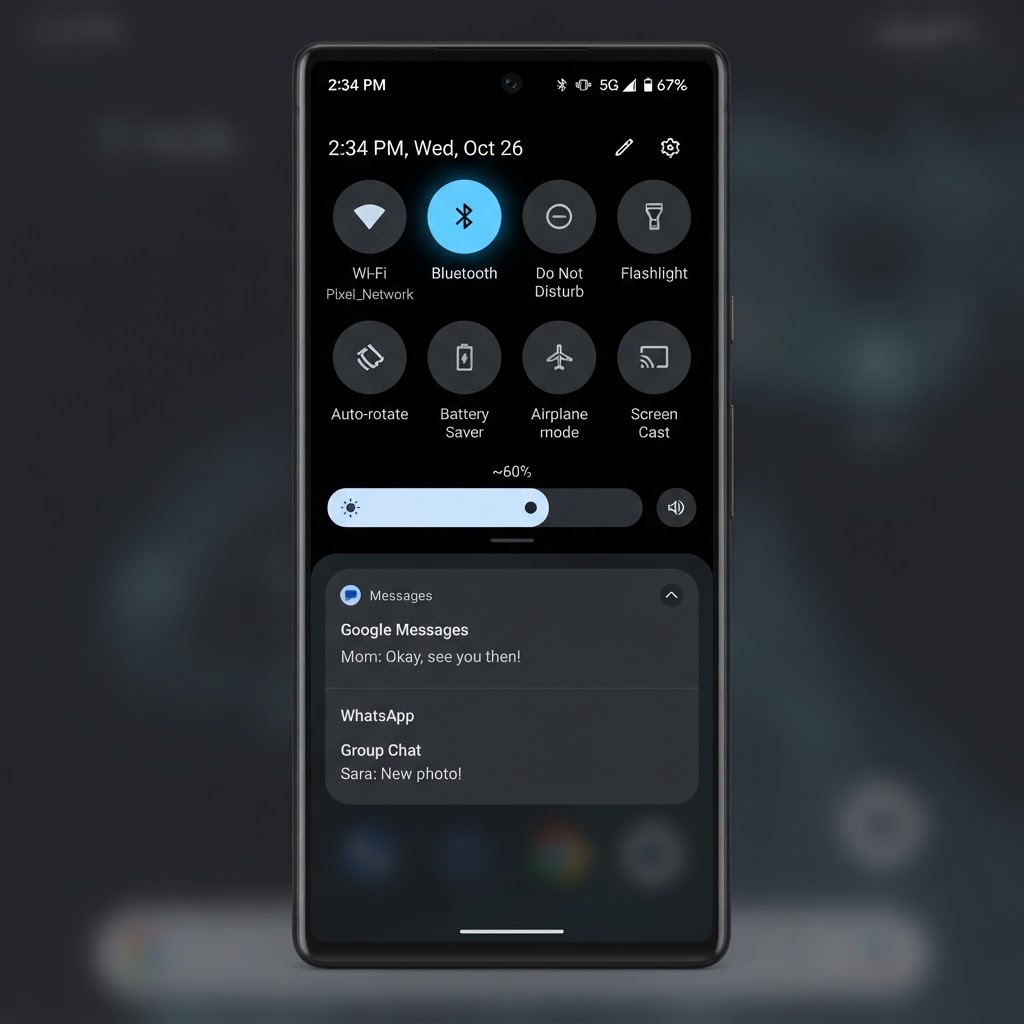
For accessories with a charging case, place the earbuds inside the case for at least 30 seconds before trying again. Make sure the accessory has enough battery and is not already connected to another phone or computer nearby.
2. Forget the Device and Pair It Again
An Android update can leave an old Bluetooth profile that no longer matches the accessory. Removing that profile and creating a new one is one of the most effective fixes.
- Open Settings and tap Connected devices or Connections.
- Choose Bluetooth and find the affected device under Saved devices.
- Tap the gear icon beside it, then choose Forget, Unpair, or Forget device.
- Put the accessory into pairing mode.
- Tap Pair new device and select it from the list.
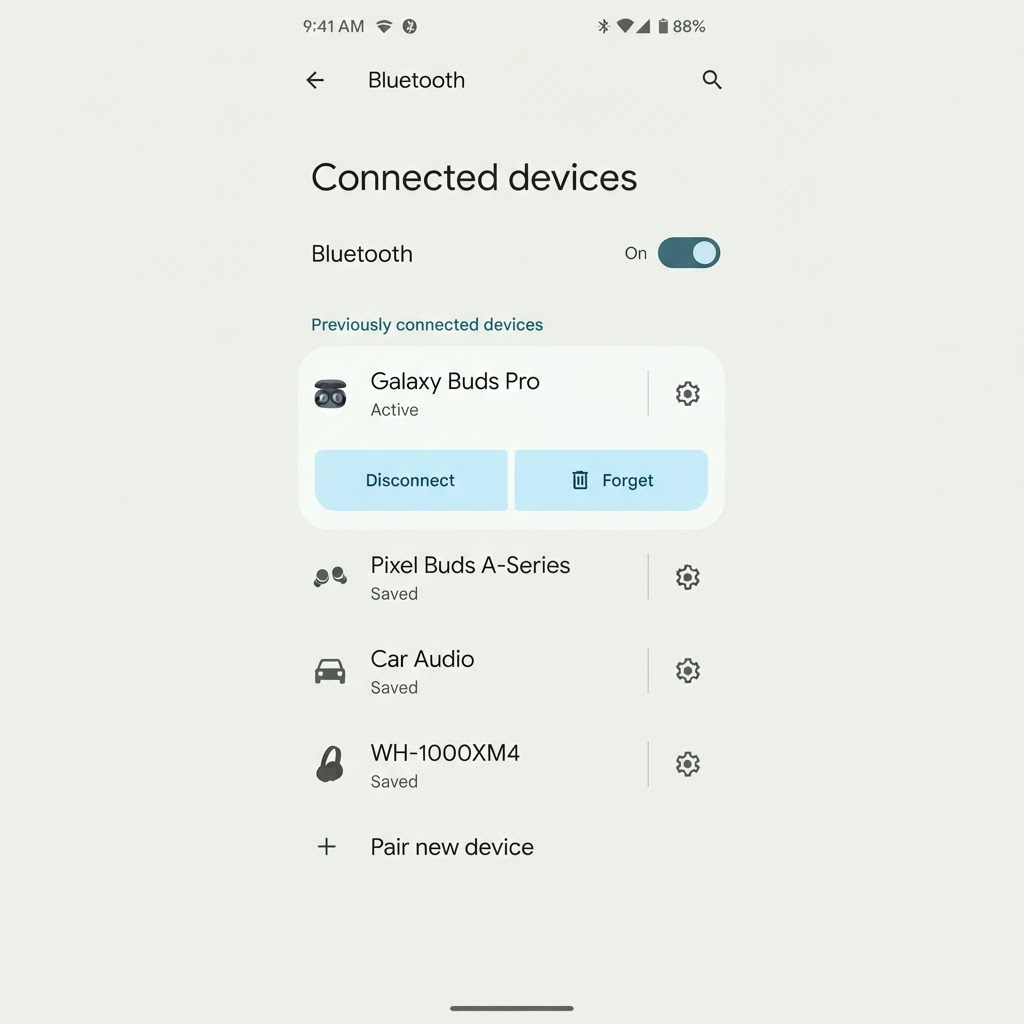
If you are connecting to a car, delete your phone from the car’s Bluetooth memory as well. Then remove the car from your phone and pair from the beginning.
3. Check Bluetooth Permissions
Some apps need nearby-device access to scan for or control Bluetooth accessories. Android may reset permissions during an update.
- Open Settings → Apps.
- Select the app that controls your accessory, such as a headphone, smartwatch, or car companion app.
- Tap Permissions.
- Allow Nearby devices. If the app uses location to scan for older accessories, allow Location while using the app.
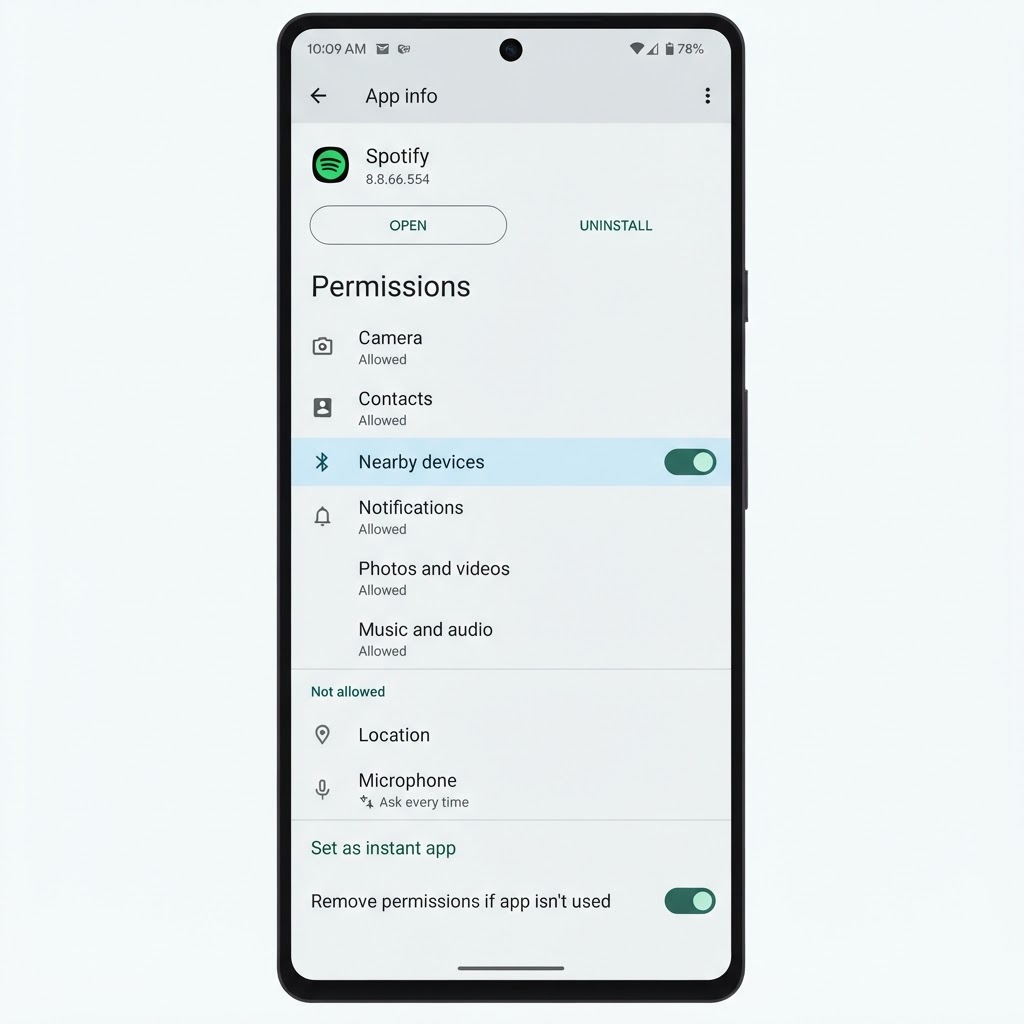
Only grant permissions that the app genuinely needs. You do not normally need to give a Bluetooth app access to your contacts or files.
4. Turn Off Battery Restrictions for the Companion App
Battery-saving changes can close a companion app in the background, causing a smartwatch, tracker, or car connection to disconnect repeatedly.
- Go to Settings → Apps and select the relevant app.
- Tap Battery or App battery usage.
- Choose Unrestricted or enable background activity.
- Repeat for any required companion service listed by the accessory manufacturer.
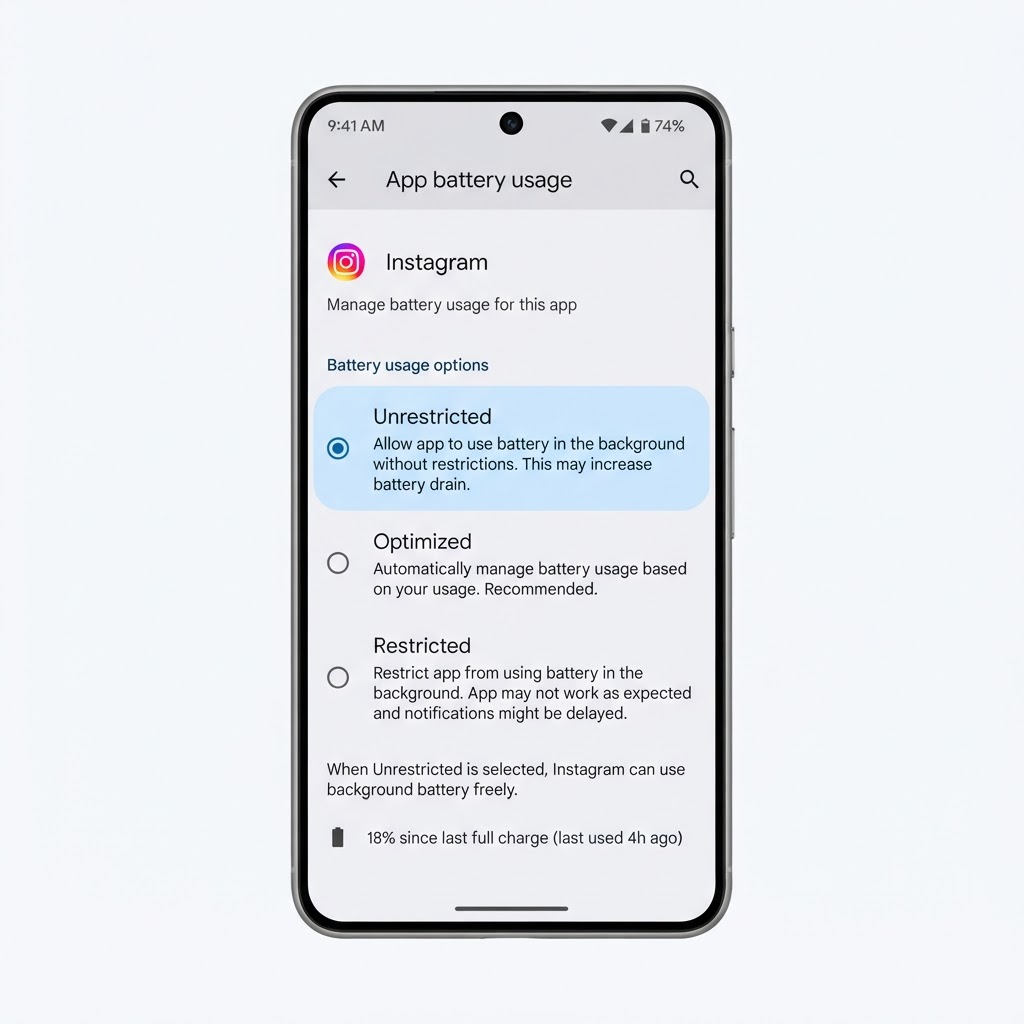
Do not set every app to unrestricted because it can increase battery drain. Apply this change only to the app that must maintain the Bluetooth connection.
5. Install App, Google Play System, and Phone Updates
Accessory manufacturers often release compatibility fixes after a major Android update. Open the Play Store, tap your profile picture, choose Manage apps & device, and install available updates. Update the accessory’s companion app and firmware if it provides that option.
Also check Settings → System → Software update. On Pixel phones, check Settings → Security & privacy → System & updates for Google Play system updates. Samsung users should check Settings → Software update. Install the latest patch because Bluetooth bugs are often fixed in follow-up releases.
6. Reduce Interference and Test Nearby
Bluetooth operates in the crowded 2.4 GHz radio band. Wi-Fi routers, USB 3 devices, microwaves, and other wireless accessories can cause audio skips or short-range disconnections.
Test the connection with your phone within one metre of the accessory. Temporarily turn off other nearby Bluetooth devices and move away from a busy Wi-Fi router. If the connection becomes stable, reconnect devices one at a time to identify the source of interference.
7. Clear Cache for Bluetooth-Related Apps
Clearing an app’s temporary cache can fix crashes and connection problems without removing your accounts.
- Open Settings → Apps and tap the affected companion app.
- Choose Storage or Storage & cache.
- Tap Clear cache, then restart the phone.
Avoid clearing storage unless necessary because it resets the app and may remove saved settings. Do not disable core Bluetooth system services.
8. Reset Wi-Fi and Bluetooth Settings
If Bluetooth still fails, reset the phone’s connection settings. The exact wording varies by manufacturer, but look under Settings → System → Reset options for Reset Wi-Fi, mobile & Bluetooth or Reset network settings.
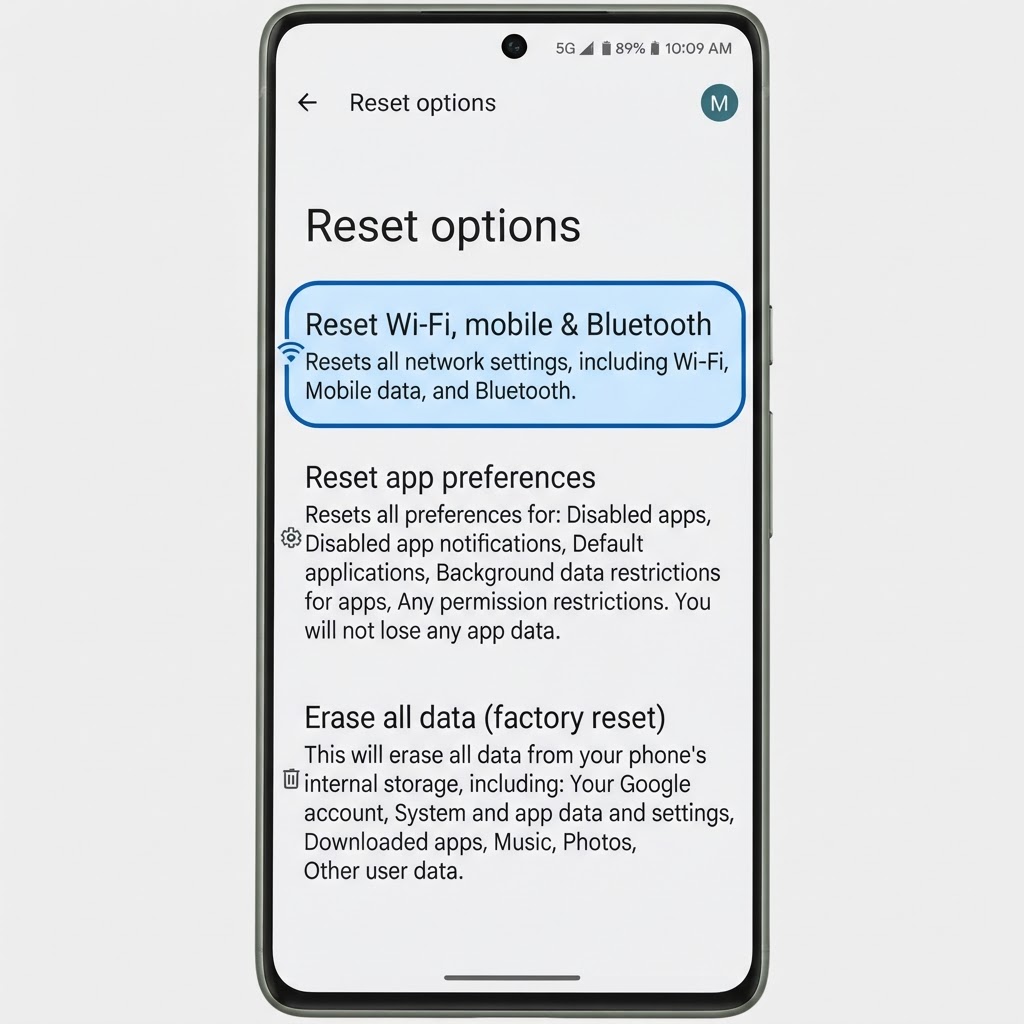
This does not erase photos, apps, or personal files. It does remove saved Wi-Fi passwords, paired Bluetooth devices, and some mobile-network settings, so make sure you know your Wi-Fi password before confirming. Pair the accessory again after the reset.
9. Test in Safe Mode
A recently installed equalizer, cleaner, security tool, or automation app can interfere with Bluetooth. Booting into Safe Mode temporarily disables third-party apps.
Press and hold the power button, then touch and hold Power off until the Safe Mode prompt appears. Confirm, then test Bluetooth. If it works normally, restart the phone and uninstall recently added apps one at a time. The Safe Mode steps can differ on Samsung and other manufacturers, so use your phone maker’s instructions if needed.
Frequently Asked Questions
Why did Bluetooth stop working after an Android update?
The update may have corrupted an old pairing profile, changed permissions, introduced a compatibility bug, or altered battery-management behaviour. Forgetting and re-pairing the device, followed by installing app and system updates, usually helps.
How do I fix Bluetooth audio that keeps cutting out?
Test nearby, reduce 2.4 GHz interference, charge both devices, forget and re-pair the accessory, and turn off aggressive battery restrictions for its companion app. Also install the latest accessory firmware.
Will resetting network settings delete my photos?
No. It removes saved Wi-Fi passwords, Bluetooth pairings, and network preferences, but it does not delete photos, messages, apps, or personal files.
What if Bluetooth works in Safe Mode?
A third-party app is probably interfering. Restart normally and remove recently installed Bluetooth managers, cleaners, equalizers, or automation apps until the problem disappears.
Conclusion
When Bluetooth is not working after an Android update, refresh the connection first, then forget and re-pair the accessory. Check permissions, battery settings, firmware, and interference before resetting network settings. If the problem remains across multiple accessories even after a security patch, contact your phone manufacturer because the issue may require a device-specific software fix.
Leave a Reply