

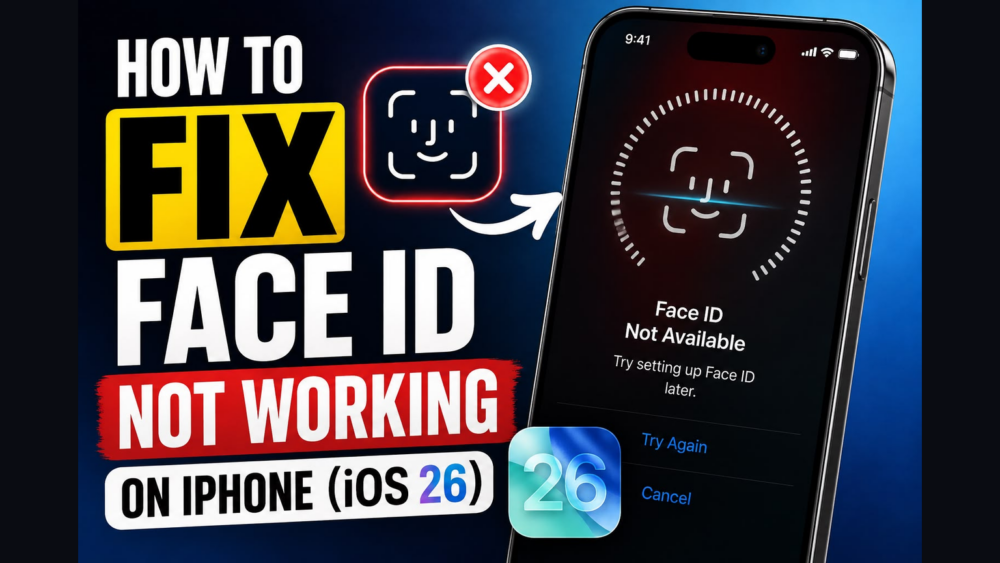
How to Fix Face ID Not Working on iPhone: 9 Proven Solutions
Face ID is the fastest way to unlock your iPhone, but when it stops recognizing you — showing “Face ID Not Available,” failing silently, or asking for your passcode every single time — it quickly becomes frustrating. It is one of the most-searched iPhone problems, and in most cases you can fix it yourself in a few minutes. Work through these nine solutions in order.
Why Does Face ID Stop Working?
Face ID relies on the TrueDepth camera system at the top of your iPhone. It fails for a handful of common reasons: something physically blocking the sensors, a setting that got switched off, a corrupted face enrollment, an iOS glitch, or — least often — genuine hardware damage after a drop. Before assuming the worst, try the cheap and fast fixes first.
1. Clean the TrueDepth Camera and Remove Obstructions
The most common cause is also the simplest: something is covering the sensors.
- Remove any screen protector or tempered glass that covers the notch or Dynamic Island.
- Take off cases or mounts that block the front camera area (especially car mounts and thick wallet cases).
- Wipe the top of the screen with a soft, dry, lint-free cloth to clear dirt, oil, and dust from the sensors.
2. Check Your Face ID Settings
Face ID can be enabled but switched off for individual features — so it works for unlocking but not for App Store purchases, or the reverse.
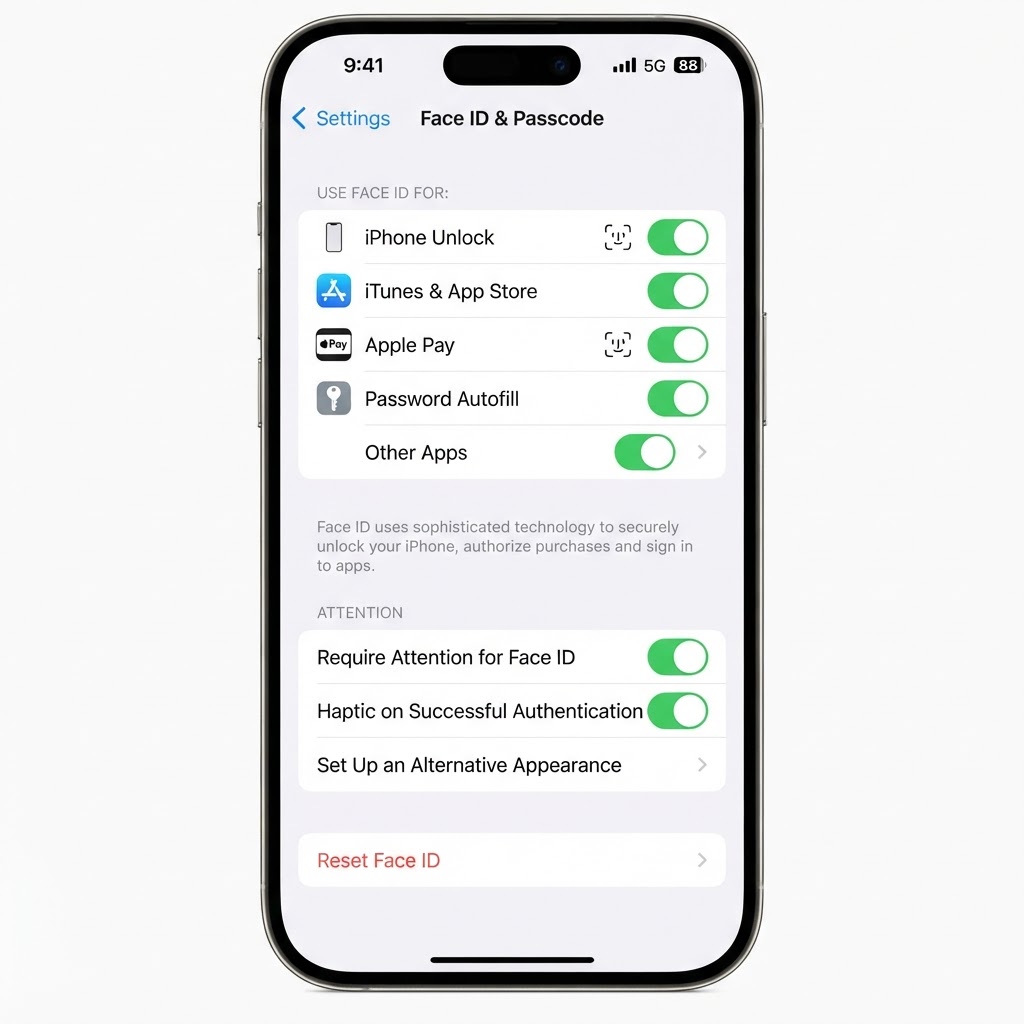
- Open Settings → Face ID & Passcode and enter your passcode.
- Confirm iPhone Unlock is turned on, along with iTunes & App Store, Apple Pay, and Password AutoFill for the features you use.
- If any toggle is off, switch it on, lock your iPhone, and test Face ID again.
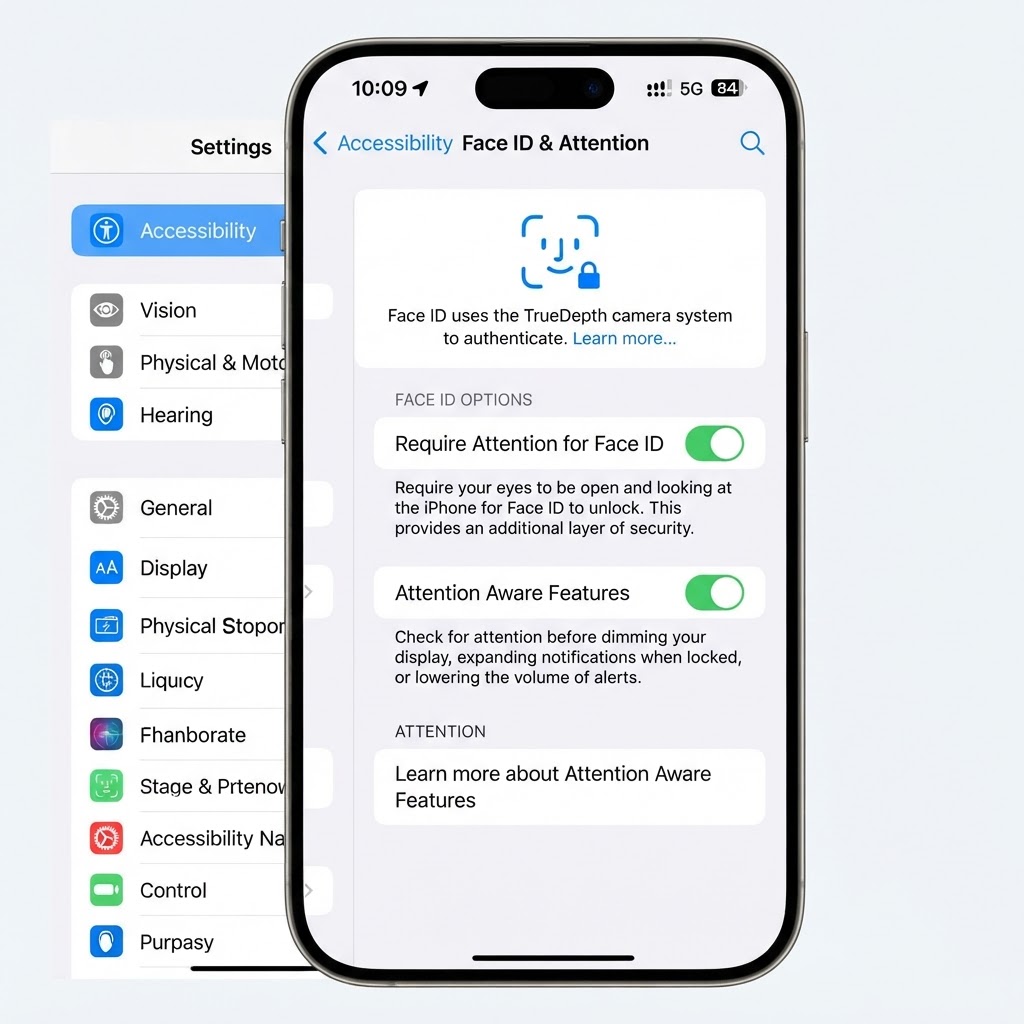
- Go to Settings → Accessibility → Face ID & Attention.
- If Require Attention for Face ID is on and you wear sunglasses or have difficulty looking at the camera, turn it off. Note that this makes Face ID slightly less secure.
- Make sure Attention Aware Features is not blocking the unlock in other ways.
- Press and quickly release the Volume Up button.
- Press and quickly release the Volume Down button.
- Press and hold the Side button until the Apple logo appears, then release.
- Once the iPhone restarts, test Face ID.
- Open Settings → Face ID & Passcode and enter your passcode.
- Tap Reset Face ID.
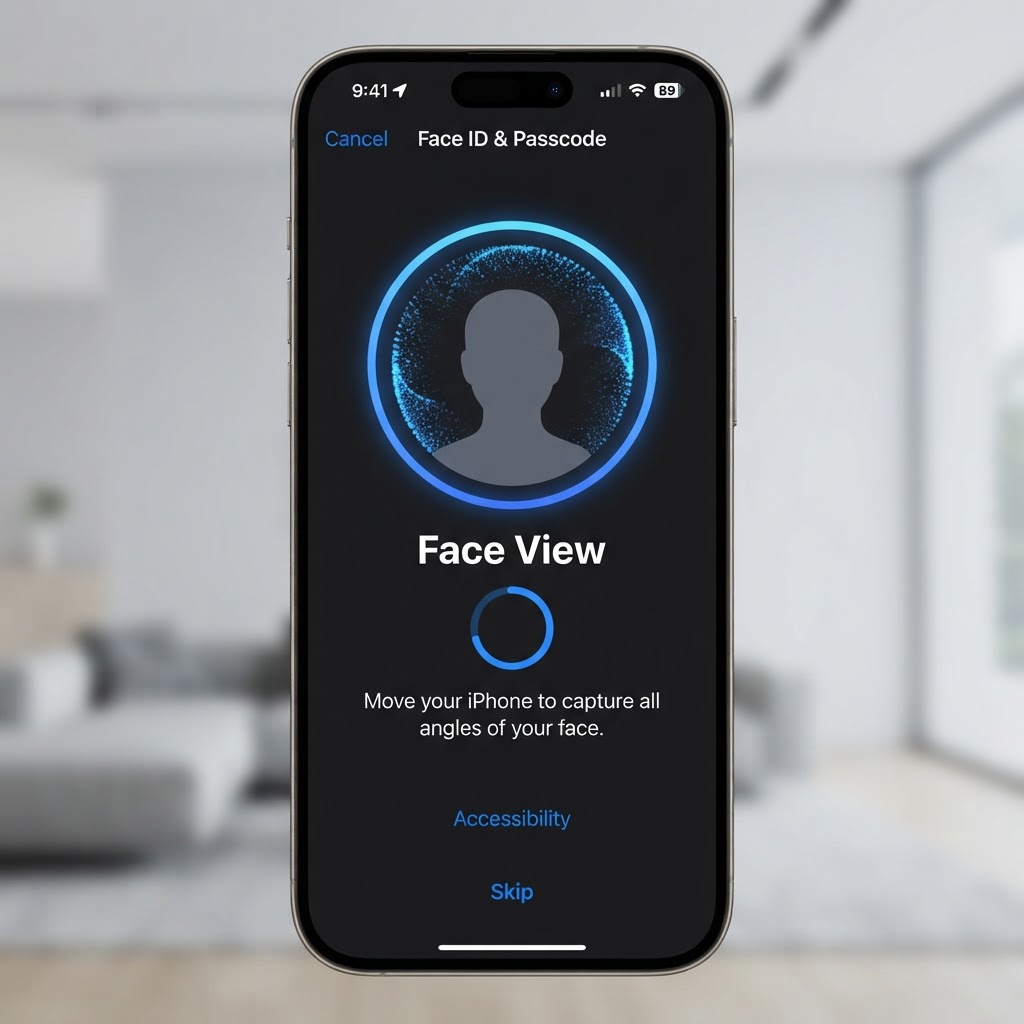
- Tap Set Up Face ID and follow the two-scan enrollment process, holding the phone at eye level in good lighting.
- Lock your iPhone and test unlock with the new enrollment.
- Go to Settings → Face ID & Passcode.
- Tap Set Up an Alternate Appearance and complete the scan while wearing the item that causes failures (for example, your prescription glasses).
- Test Face ID in the same conditions that used to fail.
- Go to Settings → General → Transfer or Reset iPhone → Reset → Reset All Settings. This returns settings to defaults without deleting your data.
- Re-enroll Face ID after the reset.
- If Face ID is still unavailable afterward — especially after a drop or screen repair — the TrueDepth camera needs service. Contact Apple Support or book a Genius Bar appointment; only Apple or an authorized provider can repair the TrueDepth system.
3. Check the Require Attention Setting
If Face ID only fails when your eyes are closed, looking away, or wearing sunglasses, the attention-aware feature is doing its job — but you can adjust it.
4. Hold the iPhone Correctly
Face ID works within roughly an arm’s length (25–50 cm) and needs a clear view of your eyes, nose, and mouth. Hold the phone at face level — not flat on a desk looking up at the ceiling — and make sure your face is not blocked by a mask, hat brim, or hair. If the room is very dark, move to better lighting; the infrared sensor works in the dark, but heavy shadowing across your face can still confuse enrollment.
5. Force Restart Your iPhone
A simple restart clears temporary software glitches that stop the TrueDepth system from responding.
6. Install the Latest iOS Update
Apple has shipped multiple fixes for Face ID bugs in point releases. Go to Settings → General → Software Update and install anything pending. If a recent update is what triggered the problem, check Settings → General → iPhone Storage for signs of a failed install, or contact Apple Support about rolling back — but most Face ID bugs are patched in the next release.
7. Reset Face ID and Set It Up Again
A corrupted face enrollment is a common cause of silent failures. Re-enrolling fixes it.
8. Set Up an Alternate Appearance
If Face ID fails only in specific conditions — glasses, a hat, a beard change — add a second enrollment instead of resetting the first one.
9. Reset All Settings or Contact Apple Support
If Face ID still refuses to work, its configuration is likely corrupted at the system level, or the TrueDepth hardware itself is damaged.
Frequently Asked Questions
Why does my iPhone say “Face ID Not Available”?
This message means iOS cannot communicate with the TrueDepth camera. Try a force restart first; if it persists after Reset All Settings, the hardware likely needs Apple service.
Does Face ID stop working after a screen repair?
It can, if the repair shop damaged the TrueDepth sensor or used non-genuine parts. Apple-calibrated parts are required for Face ID to keep working after a screen replacement, which is why screen repairs are best done by Apple or an authorized service provider.
Why is Face ID suddenly slower than before?
Usually it is attention-aware behavior, low lighting with heavy face shadowing, or a full-time passcode fallback after failed scans. Resetting Face ID and re-enrolling in good light restores normal speed in most cases.
Conclusion
Most Face ID failures come down to an obstruction, a switched-off setting, or a stale enrollment — all fixed in minutes with a cloth, a settings check, and a re-scan. Start with cleaning and settings, then force restart, re-enroll, and add an alternate appearance. If “Face ID Not Available” survives a full reset, hand it to Apple, because the TrueDepth hardware is the only part you cannot fix yourself.
Which solution worked for you? Let us know in the comments below.
Leave a Reply