

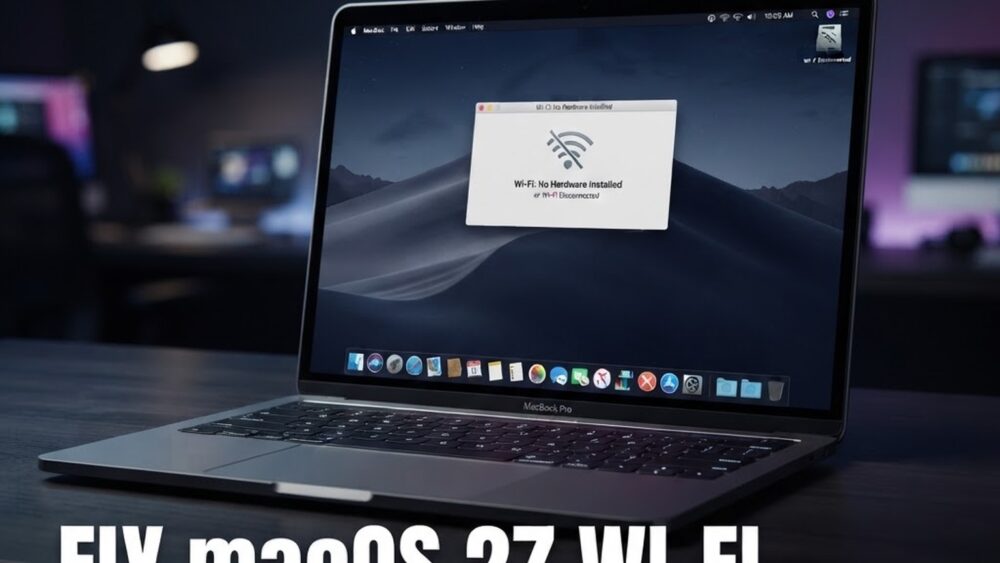
How to Fix Wi-Fi Not Working After macOS 27 Golden Gate Update
Is Wi-Fi not working after updating to macOS 27 Golden Gate? You are not alone. Some Mac users report that Golden Gate can connect to a network but fail to load websites, repeatedly drop the connection, or refuse to join a familiar Wi-Fi network after the update. In this guide, we explain how to fix macOS 27 Wi-Fi problems, starting with quick checks and moving to advanced network troubleshooting.
Why Is Wi-Fi Not Working on macOS 27?
A major macOS update can refresh network services, rebuild system caches, and change privacy or VPN settings. The problem may also be caused by a router lease, a corrupted saved network, a VPN, security software, or Spotlight and system processes still settling after the upgrade. Try the steps below in order and test your connection after each one.
1. Check Whether the Problem Is Your Mac or Network
First, connect another phone or computer to the same Wi-Fi network. If every device is offline, restart your modem and router, then wait two minutes before testing again. If other devices work normally, the issue is probably limited to your Mac.
Also try opening a few different websites. If websites fail but the Wi-Fi icon shows a connection, you may have a DNS or internet configuration problem rather than a wireless hardware problem.
2. Turn Wi-Fi Off and On Again
Click the Control Centre icon in the menu bar, select Wi-Fi, and turn it off. Wait about 10 seconds, then turn it back on and select your network. You can also open System Settings → Wi-Fi and use the switch there.
This simple step reloads the wireless connection and often fixes a temporary connection failure after a system update.
3. Restart Your Mac Completely
Choose Apple menu → Restart. Do not only close the lid or put the Mac to sleep. A full restart reloads network services and clears temporary processes that can interfere with Wi-Fi after installing macOS 27.
If your Mac is still indexing files after the upgrade, performance and connectivity may be inconsistent for a while. Keep the Mac connected to power and allow the update processes time to finish.
4. Forget the Wi-Fi Network and Reconnect
A damaged saved network profile can stop macOS 27 from joining a router correctly. To create a fresh profile:
- Open System Settings and choose Wi-Fi.
- Find your network in the list and click Details.
- Choose Forget This Network, then confirm.
- Restart your Mac.
- Return to Wi-Fi settings, select the network, enter the password, and reconnect.
Make sure you select the correct network if your router broadcasts separate 2.4 GHz and 5 GHz names.
5. Disable VPNs and Network Security Software
VPN clients, antivirus tools, firewalls, and DNS filters can block internet access after a macOS upgrade because their system extensions may need an update. Temporarily disconnect your VPN and quit any third-party network security application, then test Safari.
If Wi-Fi works after disabling one of these tools, install its latest macOS 27-compatible version or contact the software developer. Do not leave your Mac unprotected permanently. This is only a diagnostic step.
6. Turn Off Limit IP Address Tracking
Some networks can behave incorrectly when Private Relay or IP address privacy features interact with the router or a VPN. To test this setting:
- Open System Settings → Wi-Fi.
- Click Details beside the connected network.
- Turn off Limit IP address tracking.
- Disconnect from the network and reconnect.
If this fixes the issue, leave the option off only on networks where it causes a problem, such as a work, school, or hotel network. Keep privacy features enabled where possible.
7. Renew the DHCP Lease
Your router gives the Mac a local IP address using DHCP. If that address conflicts with another device or becomes invalid, Wi-Fi may show as connected while the internet does not work.
- Go to System Settings → Wi-Fi.
- Click Details beside your network.
- Choose TCP/IP.
- Click Renew DHCP Lease and then OK.
Open a browser and test a website. If the connection returns, the issue was probably a stale local network address.
8. Test a Different DNS Server
If Wi-Fi connects but websites do not load, DNS may be failing. DNS translates website names into IP addresses. You can test a public DNS service without changing your router:
- Open System Settings → Wi-Fi.
- Click Details beside your network and choose DNS.
- Click the plus button and add 1.1.1.1 or 8.8.8.8.
- Click OK, then Apply.
Test several websites. If the change does not help, remove the added server and return to the previous configuration.
9. Remove and Re-Add the Wi-Fi Service
If the Wi-Fi service configuration is corrupted, remove it and let macOS create it again. Open System Settings → Network. Select Wi-Fi, click the three-dot action menu, choose Delete Service, and confirm. Then click the action menu again, choose Add Service, select Wi-Fi, and click Create. Reconnect to your network and test the internet.
10. Install the Latest macOS 27 Update
Apple often fixes early release bugs through smaller macOS updates. Open System Settings → General → Software Update and install any available macOS 27 update. Keep the Mac connected to power during installation and restart it when prompted.
Frequently Asked Questions
Why does macOS 27 say Wi-Fi is connected but there is no internet?
The Mac may have a valid Wi-Fi connection but no working internet route. Restart the router, renew the DHCP lease, and test another DNS server. Also disconnect VPNs and security tools while troubleshooting.
Should I reset all network settings on macOS 27?
There is no single Reset Network Settings button on macOS like there is on iPhone. Forgetting the network, renewing DHCP, removing and re-adding the Wi-Fi service, and restarting the Mac provide a safer reset.
Will reinstalling macOS 27 fix Wi-Fi?
Reinstalling macOS should be a last resort. Most Wi-Fi problems after an update are caused by saved network data, DNS, DHCP, VPN software, or router compatibility. Back up your Mac before considering a reinstall.
Conclusion
When Wi-Fi stops working after the macOS 27 Golden Gate update, begin with a full restart and a router check. Then forget and re-add the network, disable conflicting VPN software, renew DHCP, and test DNS. Installing the latest macOS 27 update can also resolve bugs from the initial release. In most cases, these steps restore a reliable connection without deleting your files or reinstalling macOS.
Leave a Reply