

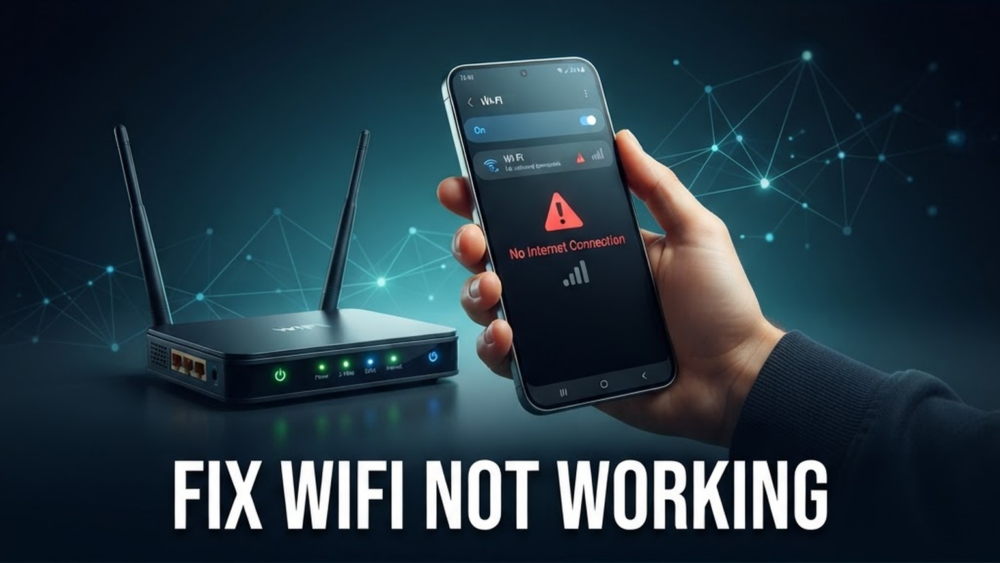
How to Fix Wi-Fi Connected but No Internet: 10 Proven Solutions
Is your device connected to Wi-Fi but showing “No Internet Connection”? This frustrating problem means your phone or computer can communicate with the router, but the router cannot reach the internet—or your device is blocking the connection. The issue can affect Android phones, iPhones, Windows PCs, Macs, and smart TVs.
Before changing advanced settings, work through these fixes in order. Most Wi-Fi problems are resolved by restarting the right equipment, reconnecting to the network, or correcting a DNS or network-configuration issue.
1. Check Whether the Problem Affects Every Device
Connect a second phone, laptop, or tablet to the same Wi-Fi network and open a website. If every device is offline, the problem is probably your modem, router, internet provider, or service line. If only one device is affected, focus on that device’s network settings.
Also check your provider’s outage page using mobile data. If there is an outage, local troubleshooting will not restore service until the provider fixes it.
2. Restart Your Modem and Router Correctly
A proper power cycle clears temporary connection failures and forces the router to obtain a fresh internet connection.
- Unplug the modem and router from power.
- Wait at least 30 seconds. Waiting two minutes is even better if the connection has been unstable.
- Plug in the modem first and wait until its online or internet light becomes stable.
- Plug in the router and wait another three to five minutes.
- Reconnect your device and test a few different websites.
Do not press the small reset button unless you intend to restore factory settings. A factory reset erases your Wi-Fi name, password, and custom configuration.
3. Check Cables and Router Lights
Make sure the modem’s internet cable is firmly connected to the wall socket and the correct WAN or Internet port. Check the power cable as well. A loose cable can leave your devices connected to Wi-Fi while the router has no connection to your provider.
Router lights vary by brand, but a red, orange, or flashing internet light usually indicates a service or modem problem. Consult the label on the router or its companion app. If the internet light stays abnormal after restarting, contact your internet provider.
4. Forget the Wi-Fi Network and Reconnect
Your device may have stored an outdated password, IP address, or security profile. Forgetting the network forces it to create a fresh connection.
- Android: Open Settings → Network & internet → Internet, tap the network, and choose Forget.
- iPhone: Open Settings → Wi-Fi, tap the information button beside the network, and choose Forget This Network.
- Windows 11: Open Settings → Network & internet → Wi-Fi → Manage known networks, select the network, and choose Forget.
- Mac: Open System Settings → Wi-Fi, select the network, choose Details, and click Forget This Network.
Reconnect by selecting the network again and carefully entering the Wi-Fi password.
5. Disable VPNs and Security Apps Temporarily
A VPN, antivirus web shield, firewall, or parental-control app can block DNS requests or internet traffic. Temporarily disconnect your VPN and pause network filtering, then test the connection. If Wi-Fi works, turn features back on one at a time to identify the cause.
Only disable security software briefly for testing. Re-enable it immediately after checking.
6. Sign In to a Captive Portal
Public Wi-Fi in hotels, airports, cafes, libraries, and offices often requires a browser sign-in. Your device may say it is connected while internet access remains blocked until you accept terms or enter a password.
Open a browser and visit a simple non-HTTPS page such as http://neverssl.com. The network’s login page may then appear. Complete the sign-in and try your original website again.
7. Change DNS Settings
DNS translates website names into internet addresses. If your provider’s DNS server is slow or unavailable, Wi-Fi may appear connected while websites fail to load.
First, set DNS to Automatic in your device or router settings. If the issue continues, test a public DNS service such as Google DNS (8.8.8.8 and 8.8.4.4) or Cloudflare DNS (1.1.1.1 and 1.0.0.1). Record your original settings before changing them so you can restore them later.
8. Fix Wi-Fi on Windows
Windows includes useful commands for renewing the network connection. Open Windows Terminal or Command Prompt as administrator and run these commands one at a time:
ipconfig /flushdns
ipconfig /release
ipconfig /renew
netsh winsock reset
Restart your computer after running them. If the problem remains, open Settings → Network & internet → Advanced network settings → Network reset. This removes and reinstalls network adapters, so you may need to reconnect to Wi-Fi afterward.
9. Reset Network Settings on Android or iPhone
If only your phone is affected, reset its network settings. On Android, open Settings → System → Reset options → Reset Wi-Fi, mobile & Bluetooth. Menu names can vary by manufacturer.
On iPhone, open Settings → General → Transfer or Reset iPhone → Reset → Reset Network Settings. This does not delete photos or apps, but it removes saved Wi-Fi passwords, VPN settings, and Bluetooth pairings.
10. Move Closer or Check Router Overload
If the connection works near the router but fails in another room, distance, walls, or interference may be responsible. Move the router into an open, central position, away from microwaves and thick furniture. Try the 5 GHz band when you are close to the router, or the 2.4 GHz band for better range.
Disconnect unused devices and check the router app for unknown clients. An overloaded or outdated router may need a firmware update or replacement.
Frequently Asked Questions
Why does Wi-Fi say connected but no internet?
Your device is connected to the router, but the router may have lost the provider connection, DNS may be failing, or a VPN and network setting may be blocking traffic.
Will restarting my router delete my settings?
No. Unplugging the router and plugging it back in preserves your settings. Do not press the factory-reset button unless you are ready to configure the router again.
Why does Wi-Fi work on my phone but not my laptop?
The laptop may have a corrupted network profile, outdated adapter driver, VPN conflict, or DNS problem. Forget the network, restart the laptop, and use the Windows network reset only if simpler fixes fail.
Should I use 2.4 GHz or 5 GHz Wi-Fi?
Use 5 GHz for faster speeds at short range. Use 2.4 GHz when you are farther from the router or there are walls between your device and the router.
Conclusion
When Wi-Fi is connected but there is no internet, first identify whether every device is affected. Restart the modem and router, check cables, forget and reconnect to Wi-Fi, and then test VPN, captive-portal, DNS, and device-specific fixes. If the internet light remains abnormal on the router, the problem is likely with your provider rather than your phone or computer.
Leave a Reply